
QR code for wedding photos: a practical guest photo plan
Create a QR code for wedding photos, choose camera or upload access, test your table signs and plan the reveal. Includes a checklist and guest wording.
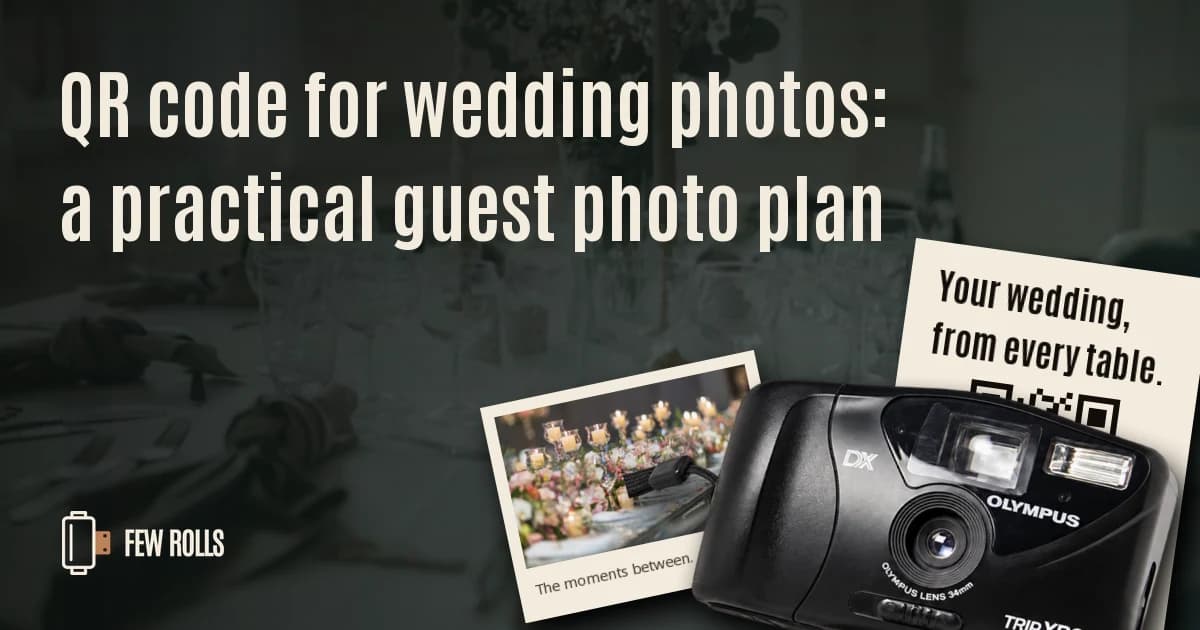
To collect wedding photos with a QR code, create an event camera or upload album, then print the code that opens it. Give guests one clear instruction, test the printed sign on their phones, and explain when they can see the pictures. The code is the shortcut; its destination determines what guests can do.
A guest expecting to upload yesterday's pictures will be confused by a camera that only takes new ones. A couple expecting a surprise may be disappointed by an album that opens immediately. Start with the experience you want, then make the invitation match it.
Choose an upload album or a shared camera
An upload album suits pictures guests already have. They take photos in their usual camera app, choose files and contribute them to a folder or gallery. Check contribution permissions, supported formats and guest account requirements before choosing a service.
A shared disposable camera makes taking photos part of the reception. Guests join one event, receive a limited allowance and photograph their own view of the day. A chosen reveal can keep the collection as a surprise.
Few Rolls follows the shared-camera approach. Guests open an invitation in a browser without installing an app. Hosts choose the allowance, camera look, reveal and viewing settings. Camera-roll uploads are a separate host setting with supported file limits; do not advertise unrestricted uploads if you have disabled them.
If you are still considering physical cameras, compare our disposable-camera alternatives. Guest photos complement your photographer's work; they do not guarantee coverage of the ceremony or formal portraits.
For a relaxed reception activity, our wedding photo scavenger hunt includes 25 prompts and a free printable card. Put the card beside your invitation sign so guests have both an idea and a way to contribute.
Set up the event before designing the sign
Create a small test event first. The free Few Rolls event supports five guests with five or ten photos each. Try the actual joining and capture flow before choosing capacity for a larger group.
Work through these decisions:
- Who will join? Guest capacity and shots per guest are different limits.
- When is the camera open? Cover the reception moments you want.
- What can guests contribute? Decide whether to enable camera-roll uploads.
- Who can see what? Choose guest album access and own-photo visibility deliberately.
- When is the reveal? Few Rolls offers reveal during the event, at camera close, or 12 or 24 hours after close. Use our delayed wedding photo reveal guide to calculate the time and plan the return invitation.
Few Rolls has no immediate capture review or retake screen. Own-photo visibility and latest-photo deletion are separate settings. Deleting a finalized shot does not restore its allowance. Try this yourself so your explanation to guests is accurate.
Write one useful instruction beside the code
A sign saying only “Our photos” leaves people guessing. Tell guests whether they are opening a camera, uploading pictures or viewing an album. Put the invitation's address beneath the code as another way to join.
For a shared camera with a later reveal, adapt this:
Take a few photos of the wedding from your seat, your table or the dance floor. Scan to open our shared camera. No app to install. Open this invitation after [reveal day and time] to see the album.
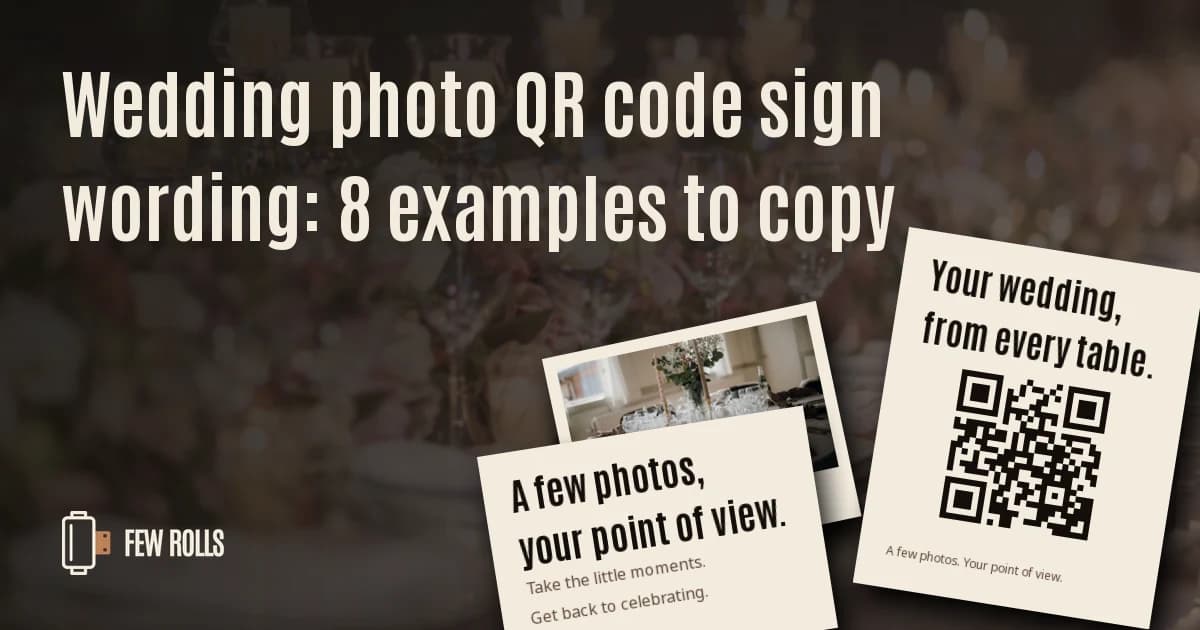
Replace the bracketed text before printing. If guest viewing is disabled, remove the promise that they can see the collection. Our QR sign wording guide has shorter versions for table cards, upload albums and voice messages.
Put signs where guests can stop
Start with the welcome table and dinner tables. Add a sign near the guestbook or another quiet pause point. A code beside a busy doorway is easy to walk past.
Use a dark code on a plain light background. Preserve the clear margin around it and avoid reflective stock or decoration inside the code. Test the actual printed size, from the distance guests will use it, in lighting similar to the reception.
Ask a friend to make one short announcement when the reception starts. They can help someone join without turning the evening into repeated requests for photos. Keep phones away from an unplugged ceremony and out of the photographer's sightlines.
Run this phone check before printing the batch
Use a test event for captures, then check the final invitation separately:
- Scan a printed proof with an iPhone and an Android phone if available.
- Confirm it opens the guest invitation, rather than the host dashboard.
- Check camera and upload options match the sign.
- Take a test picture and confirm its upload finishes.
- Try camera permission recovery and browser handoff from a messaging app.
- Check venue Wi-Fi or mobile reception, including any Wi-Fi login screen.
- Check reveal timing and viewing permissions in a guest browser.
- Type the fallback address by hand to catch mistakes.
A short trial on the devices your family uses is more useful than assuming every phone or embedded browser behaves identically.
Plan the return visit and download
After the reveal, send the original invitation again if guests can view the album. They can open it on any device. Pending uploads need a connection and time to finish in the browser where the photos were taken.
Assign one person to save the finished collection. Few Rolls includes original photo downloads. Online storage lasts two calendar months as standard, or six with MAX, from the later of camera close and scheduled photo reveal. Download before the exact deadline shown in the app.
Questions before you print
Does a QR code collect photos by itself?
No. It opens a destination that needs a camera or a way to submit files. Test contribution access, rather than checking only that the gallery opens.
Do Few Rolls guests need an app?
No app installation is required. Guests open the invitation in a browser and may need to allow camera access. Connectivity and permissions still matter.
Can guests upload existing pictures?
In Few Rolls, uploads depend on the host's setting and supported file limits. For an already-finished wedding, check that contributions are still open before asking guests to send anything.
If the camera has closed, use a separate upload request or shared album. Our guide to collecting guest photos after the wedding includes a checklist and follow-up messages you can copy.
Create a small test event, try it with a few people, and settle the reveal before ordering stationery.