
How to plan a delayed wedding photo reveal
Choose when guests see your wedding photos, calculate a realistic reveal time and copy the sign and follow-up messages. Includes a guest-access checklist.
For a delayed wedding photo reveal, choose the camera's closing time first, then decide how long guests should wait to see the shared album. Put the actual reveal day and time on your signs and send the invitation link again when the album is available. Test the viewing permissions as a guest before promising a surprise.
A practical starting point is a next-day reveal when people have time to look through the pictures. But “tomorrow morning” is only accurate if your chosen delay lands in the morning. If the camera closes at 1 am, a 24-hour delay means 1 am the following night.
This guide helps you plan that return visit. For the initial invitation and camera setup, use our wedding photo QR guide.
Decide what you want the wait to achieve
A delayed reveal gives your guest collection a shared opening moment. It can suit a couple who want to look through the album together after the reception, or guests who enjoy the surprise of a limited camera roll.
It also asks people to come back. Choose it because you like that experience, rather than assuming a delay will produce more photos or keep everyone off their phones. Guests still use their phones to take pictures, and they may take or share other photographs independently.
Choose access during the event if seeing pictures together is part of your plan. Choose a later shared reveal if the surprise matters more than immediate browsing. Keep the collection host-only if you do not intend to offer a shared guest album. A hidden gallery and a private guest list are different things: explain the intended audience separately.
Keep three decisions separate
Camera close is the end of the contribution window. It tells guests when they need to finish taking and submitting pictures.
Reveal timing determines when the shared collection is scheduled to become viewable. It is not extra time to contribute.
Viewing permission determines who can see the gallery. A scheduled reveal does not turn a host-only collection into an album guests can open.
In Few Rolls, the reveal choices are while the event is happening, as soon as the camera closes, 12 hours after close, or 24 hours after close. Gallery visibility is configured separately. For a delayed guest reveal, select guest viewing after reveal and check the invitation in a guest browser. The invitation's gallery navigation also follows the event lifecycle; do not assume selecting an early viewing option alone creates a live reception slideshow.
Own-photo visibility is another separate setting. If your promise is “keep your pictures a surprise,” check that setting too. Avoid saying “nobody can see anything” without testing the exact guest experience.
Work backwards from a time people will use
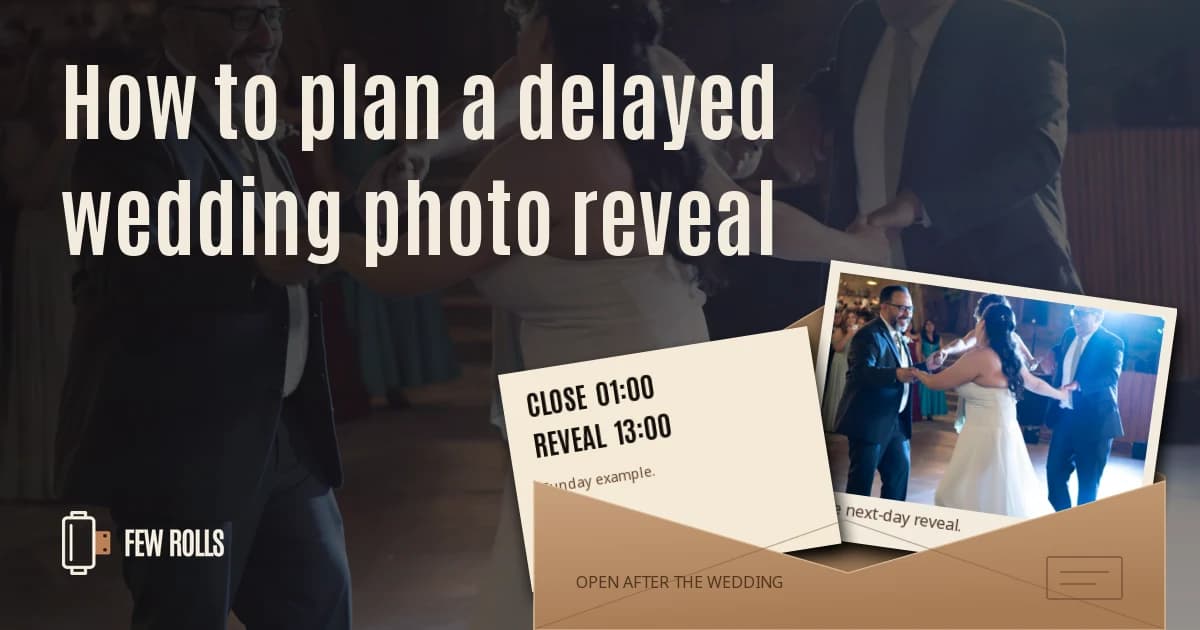
The following is an illustrative schedule, not a customer event. It uses a Saturday reception with a Sunday 1 am camera close, with no clock change during the example weekend.
- Reveal at camera close: Sunday at 1 am. Suitable for an immediate after-party look, but some guests will already be asleep.
- Reveal 12 hours after close: Sunday at 1 pm. This leaves a daytime moment to resend the invitation.
- Reveal 24 hours after close: Monday at 1 am. This is a full day of waiting, rather than a Sunday-morning reveal.
For this schedule, we would choose the 12-hour option and plan a Sunday lunchtime message. That is an editorial suggestion, not a universal best time.
Write the date as well as the hour: “Sunday 29 November at 1 pm, London time” is clearer than “tomorrow.” If people are travelling across time zones, name the event's time zone in the message. Around daylight-saving changes, check the actual displayed reveal timestamp rather than calculating by the wall clock alone.
Do not end the camera early merely to make the reveal arithmetic convenient. If you want photographs from the last dance, leave the contribution window open for that part of the evening. Then choose the closest sensible reveal and make the wording match it.
Configure and test before printing
Settle the reveal during initial event setup. In Few Rolls, changing the saved camera look, reveal timing or shots per guest through event settings requires MAX. Check current pricing before relying on a later change; this guide does not assume every adjustment is included in every event.
Use this rehearsal checklist with a helper:
- Open the actual invitation on a guest phone, rather than relying on the host dashboard.
- Take a test photograph and let its upload finish. If you enable camera-roll uploads, test that route separately.
- Check what the guest can see before reveal, including their own photographs.
- Confirm the camera's close and the calculated reveal time in the configured time zone.
- Use a short test event to check access after close and after reveal. Do not wait until the wedding to try the return visit.
- Reopen the invitation on another device and check the intended shared gallery access.
- Save the final invitation link for the person sending the follow-up.
Use a separate test event for the rehearsal so test pictures and timing changes do not confuse your wedding collection. A successful rehearsal checks the chosen devices and settings; it does not guarantee venue connectivity.
Copy a sign that explains both visits
A reveal sign needs an action now and a reason to return. Adapt this wording to your actual settings:
Our wedding, through your eyes. Scan to open our shared camera and take a few pictures during the reception. Please finish before [camera closing day and time]. Come back to this invitation after [reveal day, time and time zone] to see the shared album.
Add “No app to install” if you are using Few Rolls' browser camera. If camera-roll uploads are disabled, ask guests to take pictures in the shared camera rather than telling them to upload their existing favourites.
For a shorter table card:
Take a few tonight. Relive it on [day] at [time]. Scan for our shared wedding camera and keep this invitation for the album reveal.
Keep the closing time somewhere accessible even if the smallest card only has room for the reveal. Our wedding photo sign wording guide has more examples and print checks.
Give one person the follow-up
Choose a helper who already has an appropriate way to contact guests. Give them the final link and a message to send after checking that the gallery opens. This is a manual communications plan; do not assume the camera service will send a notification to everyone.
Before reveal:
Thank you for being part of our day. Our shared guest-photo album opens on [day] at [time and time zone]. Keep this invitation: [link]. We cannot wait to see your side of the celebration.
Once it is available:
The guest-photo album is ready: [link]. Thank you for capturing the little moments. Please enjoy the pictures with the people who were there, and ask before posting someone else's photo publicly.
If guests ask for pictures before the scheduled time, repeat the date and link. If someone says the album is unavailable after that time, first check the link, guest viewing setting and actual event time. Sending the same message repeatedly will not fix a host-only gallery.
Plan for late and unfinished contributions
A reveal is not a promise that every guest's pictures have arrived. Before people leave, ask them to let pending uploads finish with a connection in the browser they used. Do not tell them that closing the browser or reopening the invitation elsewhere guarantees recovery of an unfinished upload.
After the camera closes, use a separate collection route for photographs that missed the contribution window. Do not imply that waiting for the reveal reopens uploads. Our post-wedding photo collection guide includes follow-up wording for that different task.
If you need to change an event setting, check what the current app allows and any upgrade requirement before announcing a new schedule. Update your guests with a complete replacement date and time instead of asking them to work out the difference.
Make the reveal a moment, then save the collection
You could look through the pictures together over breakfast, choose a handful for a family conversation, or simply let everyone browse in their own time. None of those needs a competition or a public screen. Ask separately before turning a shared guest album into a public post or presentation.
Nominate someone to download the collection and check a few saved files. Use the exact storage deadline shown in the app for your event, and make your own backup before it expires. The reveal is the start of enjoying the album, not an archive plan.
Before printing, you should be able to finish this sentence: “Our camera closes on [date and time], our guests can open the shared album on [date and time], and [person] will send the invitation again.”
Create a small test event, rehearse both visits and make your signs match what guests actually experience.