
Wedding photo QR code sign wording: 8 examples to copy
Copy eight wedding photo QR sign examples for shared cameras, uploads, delayed reveals and voice guestbooks. Includes a print check and announcement script.
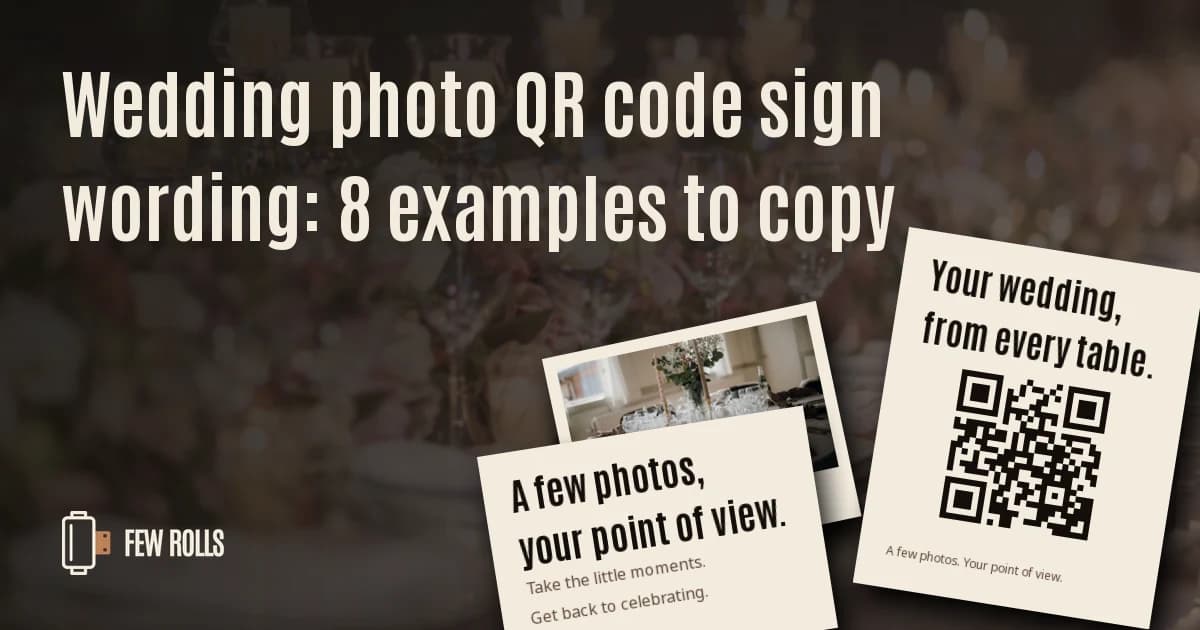
Good wedding photo QR code sign wording tells guests what the code opens, what to do next and when they can see the pictures. “Scan to open our shared camera” suits new photos. “Scan to add photos from your phone” suits an upload album. Use the version that matches the destination you have set up.
These eight original examples work for table cards, welcome signs and invitation messages. Replace bracketed details before printing. Put a readable invitation address under the QR code for people who prefer to type it.
1. A short shared-camera invitation
Our wedding, from your seat. Scan to open our shared camera and take a few photos of the moments around you. No app to install.
Use this for a browser camera such as Few Rolls. If you mention an allowance, add “You have [number] photos each” using the configured limit. Avoid calling it unlimited or promising that every picture can be retaken.
2. A surprise album reveal
A few photos now. A lovely surprise later. Scan to open our wedding camera. The album opens [day, time and time zone]. Keep this invitation so you can open the album later.
Use this when guest gallery access is enabled and you have set the reveal. A specific day and time helps guests travelling home. Few Rolls supports reveal during the event, at camera close, or 12 or 24 hours after close.
If the schedule changes, update the sign or tell guests the correct time. Printed wording cannot change the app setting.
3. Photos already on guests' phones
Have a photo we'd love to see? Scan to add your wedding pictures from your phone. Choose the moments you would like to share with [album audience].
Test that the destination accepts guest contributions and the expected file types. In Few Rolls, camera-roll uploads are a host setting with supported file limits. This wording is unsuitable when uploads are disabled.
If you offer both camera capture and uploads, describe them separately rather than expecting “share” to explain both.
4. A prompt for the dinner table
Before the plates disappear: a photo of your table, a detail you love, or the people you came with. Scan to open our shared camera. Ask before photographing someone, then get back to celebrating.
Pick details that exist at your reception. Dinner, a picnic and a standing reception offer different opportunities.
You can give different tables different prompts. Keep the joining instruction the same so people do not assume each table has a separate album.
5. A sign beside an audio guestbook
Leave us something in your own voice. Scan, open the voice guestbook and share a memory, a wish or a very short toast. Only we can listen.
Use the final sentence only if the guestbook is host-only. Cassette uses the Few Rolls photo invitation and keeps messages private to the host. Our audio guestbook guide includes a welcome script and prompts.
Place the sign where people can hear themselves rather than beside a speaker.
6. An unplugged ceremony
Phones away for the ceremony. Shared camera ready for the reception. After the vows, scan here to help us remember the celebration from your point of view.
Keep the code away from ceremony seating if it would encourage the opposite behaviour. Coordinate with the celebrant, planner or photographer. A reception activity should not draw guests into the aisle during the ceremony.
7. A take-home reminder
The celebration continues in the album. Open this invitation after [reveal time] on your phone or computer. We're looking forward to seeing your view of the day.
This is a return instruction. If the camera has closed, do not imply guests can keep contributing. If the collection is host-only, use a thank-you instead of inviting people to view it.
A take-home card is optional; the original link in a follow-up message can be enough.
8. A host-only collection
Help us keep the little moments. Scan to take a few wedding photos for us. The photo collection is for the hosts to enjoy; guests will not have access to the full album.
This is clearer than “private album,” which can mean different things. Check whether own-photo visibility is separately enabled and explain it if relevant.
An access setting does not prevent someone forwarding an invitation or sharing a download. Set expectations as well as choosing controls.
Make the sign easy to scan
Use the QR code for the final guest invitation. Preserve its clear margin, put a dark code on a plain light area and keep text outside it. A logo belongs outside the code unless the complete design has been tested for scanning.
Print one proof at its actual size. Try it from where guests will sit or stand, in representative lighting. Check that glossy stock or a decorative frame does not obscure it. No single size guarantees scanning at every distance.
Use our wedding QR checklist for the full setup sequence.
Give the MC a short announcement
There's a shared wedding camera on the table cards. Scan to take a few photos from your point of view; you don't need to install an app. The album opens [time]. It's optional, so join whenever you like.
For uploads, replace “take a few photos” with “add a few pictures from your phone.” For immediate viewing, say the album is already open. Then let the signs work without repeating the announcement all night.
Try your Few Rolls setup before printing: the final sign needs a correct invitation, legible code, accurate action and any reveal details guests need.