
How to collect guest photos after the wedding
Collect wedding photos guests already took. Choose one upload link, send a short thank-you and reminder, and save the original files before the deadline.
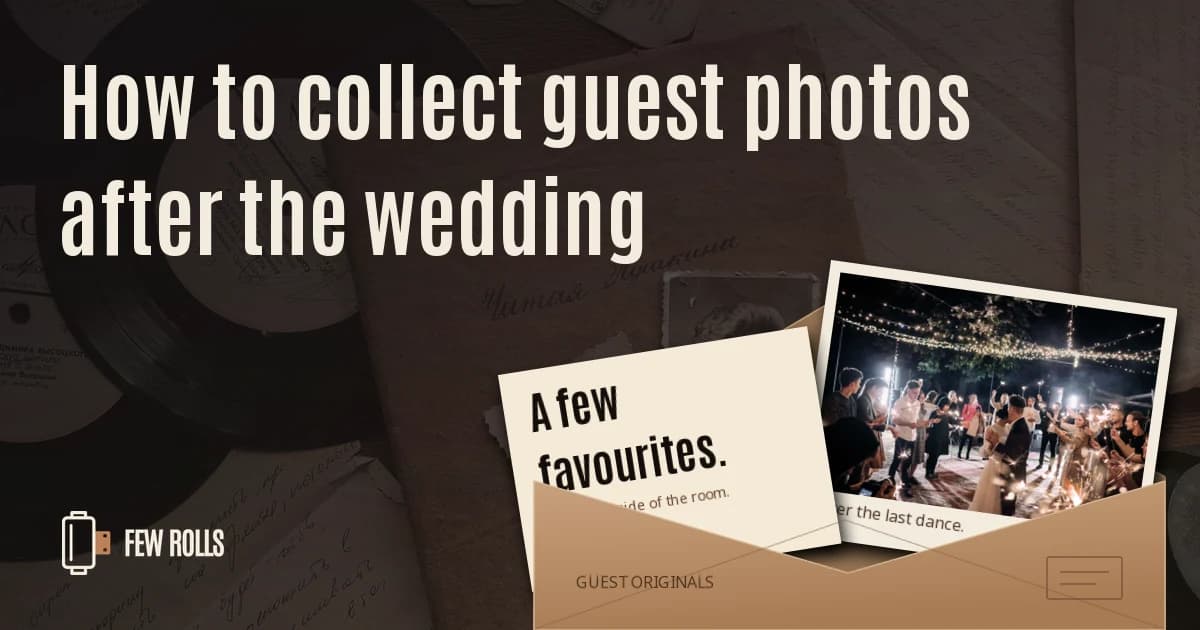
To collect guest photos after your wedding, send one upload link in a thank-you message. Ask for a few favourite originals, give guests a clear deadline and test the link on someone else's phone first. If your wedding camera has already closed, make a fresh file request or a collaborative album for the pictures still on guests' phones.
Start with the people who saw parts of the day you missed. Think of the friends who greeted guests at the door or the relative who stayed on the dance floor after you went to say goodbye. Asking for one particular moment makes it easier for someone to find a photo than asking them to sort their entire camera roll.
Choose one place for the files
Choose the link based on who should see the photos and whether you already have a working way to collect them.
- You want to look through the pictures first. Use a file request with a folder only the organisers can open. Guests can submit photos through a Dropbox file request without a Dropbox account, and its destination folder is private by default. Check the folder's access and your available storage before sending it. Dropbox file request instructions.
- You want guests to browse and contribute in one place. Use a shared album with contributions enabled. For Google Photos, check the Collaborate setting and test from a guest account. People can forward a shared link, so check how you share it before adding pictures you want to keep within a small group. Google Photos shared album controls.
- You already have a wedding camera that's still open. Reuse the original guest invitation if your service accepts camera-roll uploads and guests have room to contribute. Confirm the actual cut-off before you put a date in the message.
A clickable link is useful in a text or email because most guests will open it on the same phone that holds their pictures. If you're planning printed signs for another event, our wedding QR photo guide covers the setup and print checks.
Check whether your Few Rolls camera is still open
The camera's closing time is the cut-off for starting new uploads. The reveal controls when the shared gallery becomes available. A guest can have a link to a revealed gallery after the camera has closed. Use a separate file request for any new contributions that missed the closing time.
If your Few Rolls camera is open and guest uploads are enabled, open the invitation and join the camera. Tap the photo square beside the shutter, choose Upload from device and pick a photo. Each upload uses one of the guest's shots. JPEG, PNG and WebP are supported, with a 25 MiB limit per file and limits on image dimensions. If a guest has a photo in another format, ask them to export a JPEG copy or use your file request.
Check the link from a guest browser and try one image before asking everyone else. Confirm the photo has arrived and can be opened in the host collection. If a guest already has an upload in progress, ask them to return in the same browser with a connection and check its status. Have them send their original separately if it still fails.
When guest gallery access is enabled, anyone with the event link can view the shared photos once the gallery is available. Keep the link within your intended audience. If you want to collect privately and share a selection later, use a host-only collection or a private file request.
Send a thank-you, then one reminder
Send the first note while guests can still find the photos easily. State what you want, where the files go, who can see them and the date you'll stop collecting. A request for three to five favourites gives people somewhere to start. For a camera with a shot limit, ask for a number that fits their remaining allowance.
A thank-you text for a private collection
Thank you for celebrating with us. We'd love a few photos from your side of the room. If you have any favourites, please add the original files here by [day and time] — [upload link]. The uploads go to us, and we'll ask before sharing any more widely. Even one photo would make our day.
Use the privacy sentence only for a destination you've checked as the organiser. If contributors can browse the album, say who has access in that line instead.
A note for guests who already used your camera
If you've got a favourite from the wedding in your usual camera roll, there's still time to add it. Open our original invitation at [link], tap the photo square and choose Upload from device. The camera closes [day, time and time zone]. Please pick a few that fit your remaining shots.
Send that version while contributions are open. Our wedding photo sign wording guide has examples for explaining who can view the gallery and when.
A reminder for a particular moment
Do you still have the photo of our table trying to fold the napkins back into swans? We'd love to keep that one. We're collecting pictures until [day and time] at [link]. If uploading is awkward, reply with the original file and I'll add it for you.
Pick a detail that actually happened at your wedding. Send a private reminder to the person likely to have it. That gives them an easy search target and lets the rest of the group get on with their week.
Recover photos that are already in chats
Start a folder named Guest originals and copy in what you already have. Keep any captions or messages that identify an unfamiliar person or moment in a separate note. Ask the person who took a favourite for the original file if the version you have is a screenshot, a small preview or a forwarded copy.
When two versions look identical, keep both until you can compare their size and detail. If you're making a print or a photo book, open the chosen file at a larger size before deleting the spare. Keep your photographer's gallery in a separate folder so you can find their finished work alongside the guest photos.
Offer one fallback for a guest who can't use the link. They can reply directly with a file and you can save it into the same folder. Give the group one main destination so you know where to look at the deadline.
Test the link and save the collection
Before sending the message, try the following with someone who has the same access as a guest.
- Open the exact link from the draft text on a phone and look for the contribution button.
- Submit one ordinary JPEG from the phone's library. Wait for confirmation and open the received photo from the host side.
- Ask the helper what else they can see. Adjust the album's access or your message until those match.
- Write down the last time guests can contribute and the date you need to save the files. If those are separate, put both on your calendar.
- At the deadline, download the originals and open a few files from the saved folder. Keep a second copy somewhere you control before closing the request or changing its sharing settings.
For Few Rolls, use the storage deadline shown in the event dashboard. If you want to share a selection later, copy the chosen pictures into a separate album and send that link to the people you want to invite.
For your next celebration, decide on the upload window before the first photo arrives. Few Rolls fixes that window once the event has received its first photo. A small test event is a useful way to try the invitation and upload steps before the real day.