
Company party photo sharing: a checklist for the organiser
Organise company party photo sharing with a clear audience, QR instructions, optional photo prompts and a download plan. Includes copyable staff messages.
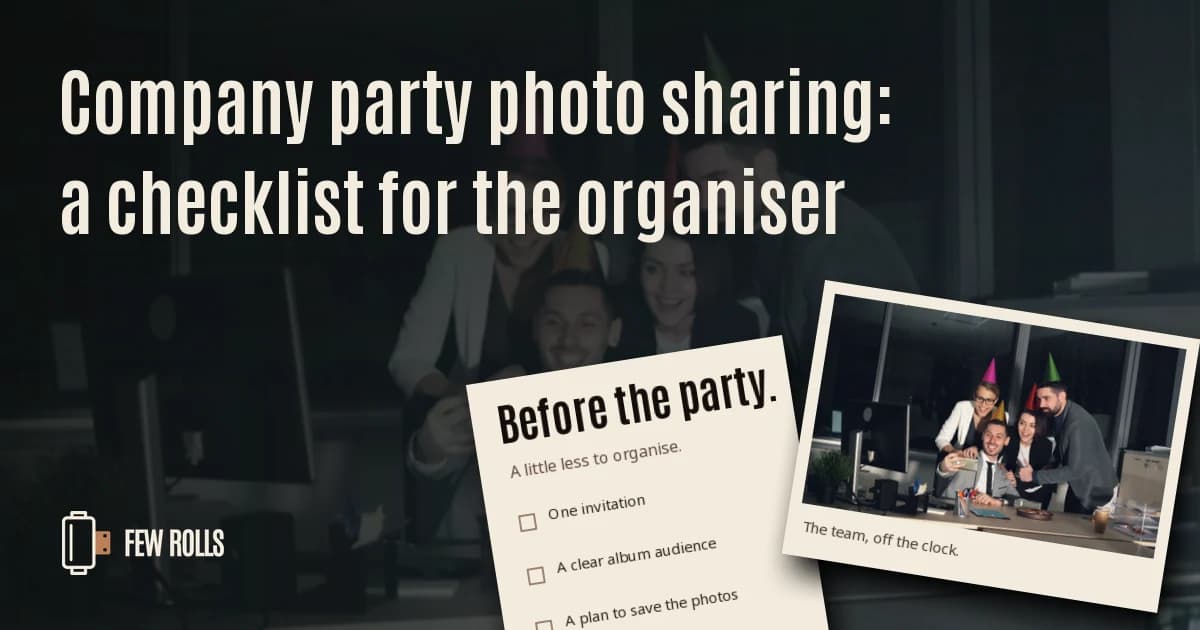
For company party photo sharing, choose one collection method, explain who can see the album, and assign an organiser to save the pictures afterwards. Put the invitation in the event message and on a few visible signs. Keep the internal party album and public marketing use as separate decisions.
That gives a team dinner or office celebration a workable starting point. A conference, regulated workplace or public brand activation may need a specialised approval and media workflow. Check those requirements with the people responsible before choosing a tool.
Choose a collection method for the task
If colleagues already have pictures to submit, your organisation's approved file collection process may be simplest. Check contribution permissions from a normal attendee's phone; a folder that opens for its owner may reject other people's uploads.
For an activity during the gathering, a shared camera gives people a reason to capture something together. Few Rolls opens from an invitation in a browser without an app installation. The host chooses joining capacity, per-person photo limits, reveal and viewing settings.
An optional team camera suits candid views of the party. It does not provide a staffed booth, a consent register, guaranteed coverage or an enterprise media archive.
Set the audience before sharing the invitation
Agree these points with the event owner:
- Is the album for attendees, a smaller group or the host only?
- Will pictures be visible during the party or after a reveal?
- Who handles a request about a photo?
- Where will approved downloads be kept, and who can access them?
- Who decides separately about public social or recruitment use?
Use your organisation's policies and approved processes. A camera setting cannot establish permission for a later campaign. Make it easy to attend without joining the activity or appearing in pictures.
Treat an invitation as a link that can be forwarded. “Not listed in search” is different from “only named employees can open it.” Check the actual controls rather than relying on reassuring wording.
Copy this pre-party message
Fill in the audience, contact and reveal details:
We're setting up an optional shared camera for [event]. Join at [invitation link] on your phone. The album is intended for [audience] and will be available [time]. Ask before photographing a colleague. Contact [organiser] about a photo or access problem. Please check before sharing pictures outside the group.
For Few Rolls, add “No app to install.” If guest gallery access is disabled, explain that the collection is for the host instead. Confirm camera-roll uploads are enabled before promising people can contribute existing photos.
For compact signs, adapt the formats in our QR sign wording guide.
Offer prompts people can join from their seats
Avoid making the game depend on alcohol, dancing or public performance. Someone seated at dinner should have as many ways to join as someone on the dance floor.
Try these eight prompts:
- A venue detail you would otherwise walk past.
- The view from your table before dinner starts.
- A team mascot improvised from objects already there.
- A group on a fictional magazine cover, if everyone agrees.
- An unexpected pair of matching colours.
- A picture that sums up the evening without showing a face.
- Colleagues demonstrating an imaginary side business.
- The final scene before the room is cleared.
Let guests choose two or three. Do not turn contribution counts into attendance tracking. The birthday prompt library offers more ideas for a relaxed gathering.
Test the phones and venue connection
Try a small event with phones that are not signed into the host account. Check scanning, permission prompts, capture and a completed upload. Repeat the joining check on venue Wi-Fi, including its login screen.
Returning Few Rolls guests can view the shared gallery on any device with the event link. Pending uploads still need a connection in the browser where they were taken. Do not promise guaranteed offline delivery.
The free five-guest event is useful for a trial. Compare guest capacity with expected participation; capacity and shots per guest are different choices.
For branding, MAX adds a custom Few Rolls invitation link ending, event logo and invitation camera-button text. It is separate from capacity. Check the current offer before promising overlays, an external custom domain or enterprise access controls.
Make the reveal match the announcement
Few Rolls supports shared reveal during the event, at camera close, or 12 or 24 hours later. Guest access is controlled separately. Own-photo visibility and latest-photo deletion are separate settings, and there is no immediate capture review or retake screen.
Choose a later reveal if people should spend less of the evening browsing. Displaying pictures on a large screen changes the audience, so agree that separately rather than assuming an album is a public slideshow.
Give the album an owner and deadline
Name the organiser who will download the agreed collection, answer questions and manage retained copies in approved storage.
Few Rolls includes original downloads. Online media lasts two calendar months as standard, or six with MAX, from the later of camera close and scheduled photo reveal. An upgrade does not start a new six-month clock on purchase day. The app shows the exact deadline.
After the reveal, adapt this:
The [event] collection is ready for [audience]. Open the original invitation on your phone or computer. Contact [organiser] about a photo, and check before sharing outside the group. We will save the agreed collection by [date].
Change the viewing instruction if the album is host-only. You now have one invitation, clear expectations, an optional activity and a person responsible afterwards.